> ## Documentation Index
> Fetch the complete documentation index at: https://docs.getuntyped.ai/llms.txt
> Use this file to discover all available pages before exploring further.
# Exclude Prompt
> Tell Untyped which emails not to reply to using natural language
Use exclude prompt when the [base sensitivity sliders](/features/rules) aren't enough. This gives you fine-grained control to describe specific email types that don't need replies.
## What is Exclude Prompt?
Exclude prompt lets you describe in plain language which emails don't need replies. Instead of manually skipping drafts, teach the AI your preferences once.
 ## How It Works
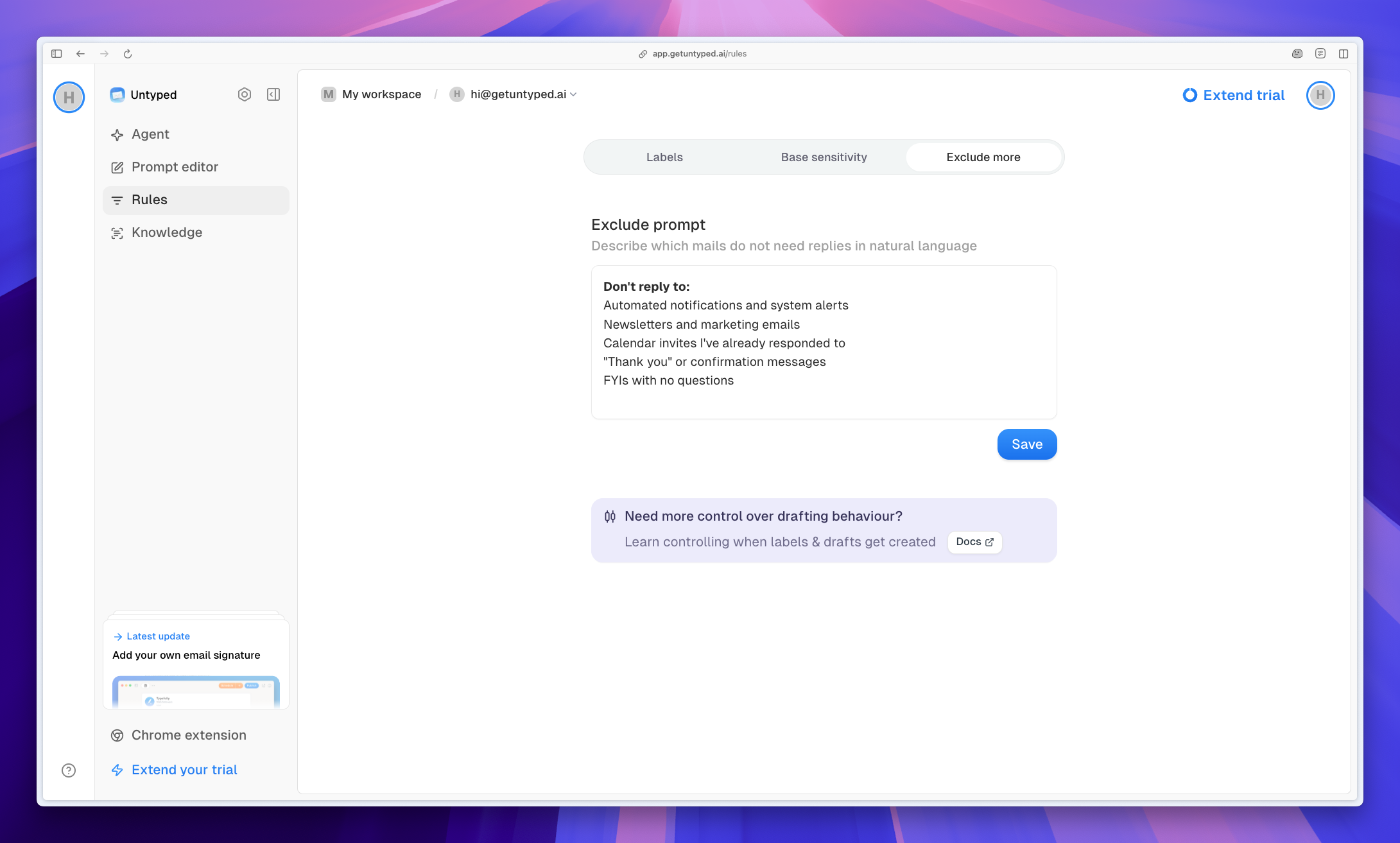
Write rules in natural language describing emails that don't need responses. The AI applies these rules automatically to skip draft creation.
**Example rules:**
* Automated notifications and system alerts
* Newsletters and marketing emails
* Calendar invites I've already responded to
* "Thank you" or confirmation messages
* FYIs with no questions
Be specific. Instead of "newsletters," try "weekly digest emails and automated reports."
## Setup
Go to Rules → Exclude more tab at [app.getuntyped.ai](https://app.getuntyped.ai/rules)
Write which emails don't need replies in the text box
Click Save to apply your rules
## Combine with Base Sensitivity
Exclude prompt works alongside [base sensitivity](/features/rules):
* **Base sensitivity**: Sets overall draft frequency
* **Exclude prompt**: Defines specific categories to skip
Use both for precise control—set sensitivity to "Often" and exclude routine emails you never need to reply to.
## Next Steps
Adjust draft frequency with the slider
See how emails are categorized
## How It Works
Write rules in natural language describing emails that don't need responses. The AI applies these rules automatically to skip draft creation.
**Example rules:**
* Automated notifications and system alerts
* Newsletters and marketing emails
* Calendar invites I've already responded to
* "Thank you" or confirmation messages
* FYIs with no questions
Be specific. Instead of "newsletters," try "weekly digest emails and automated reports."
## Setup
Go to Rules → Exclude more tab at [app.getuntyped.ai](https://app.getuntyped.ai/rules)
Write which emails don't need replies in the text box
Click Save to apply your rules
## Combine with Base Sensitivity
Exclude prompt works alongside [base sensitivity](/features/rules):
* **Base sensitivity**: Sets overall draft frequency
* **Exclude prompt**: Defines specific categories to skip
Use both for precise control—set sensitivity to "Often" and exclude routine emails you never need to reply to.
## Next Steps
Adjust draft frequency with the slider
See how emails are categorized