> ## Documentation Index
> Fetch the complete documentation index at: https://docs.getuntyped.ai/llms.txt
> Use this file to discover all available pages before exploring further.
# Admin approval required in Microsoft 365
> Solution: Grant organization-wide access to Untyped for Microsoft 365 and Outlook users
## Overview
**Untyped securely integrates with Microsoft 365** to organize inboxes, draft smart replies, and capture meeting notes automatically.
To enable Outlook connections for your team, an admin needs to grant Untyped permission in **Microsoft Entra ID** (formerly Azure AD). This step authorizes a secure, organization-wide connection through Microsoft's verified OAuth process.
***
## Granting Access to Untyped
Admins can approve Untyped using one of **two methods**:
### Method 1: Grant Consent During Untyped Login
This is the quickest way to enable access for all users.
Go to [app.getuntyped.ai](https://app.getuntyped.ai) and click **Continue with Microsoft/Outlook**
Sign in using your Microsoft admin account
On the Permissions requested screen: - Check: **Consent on behalf of your organization** - Click **Accept**
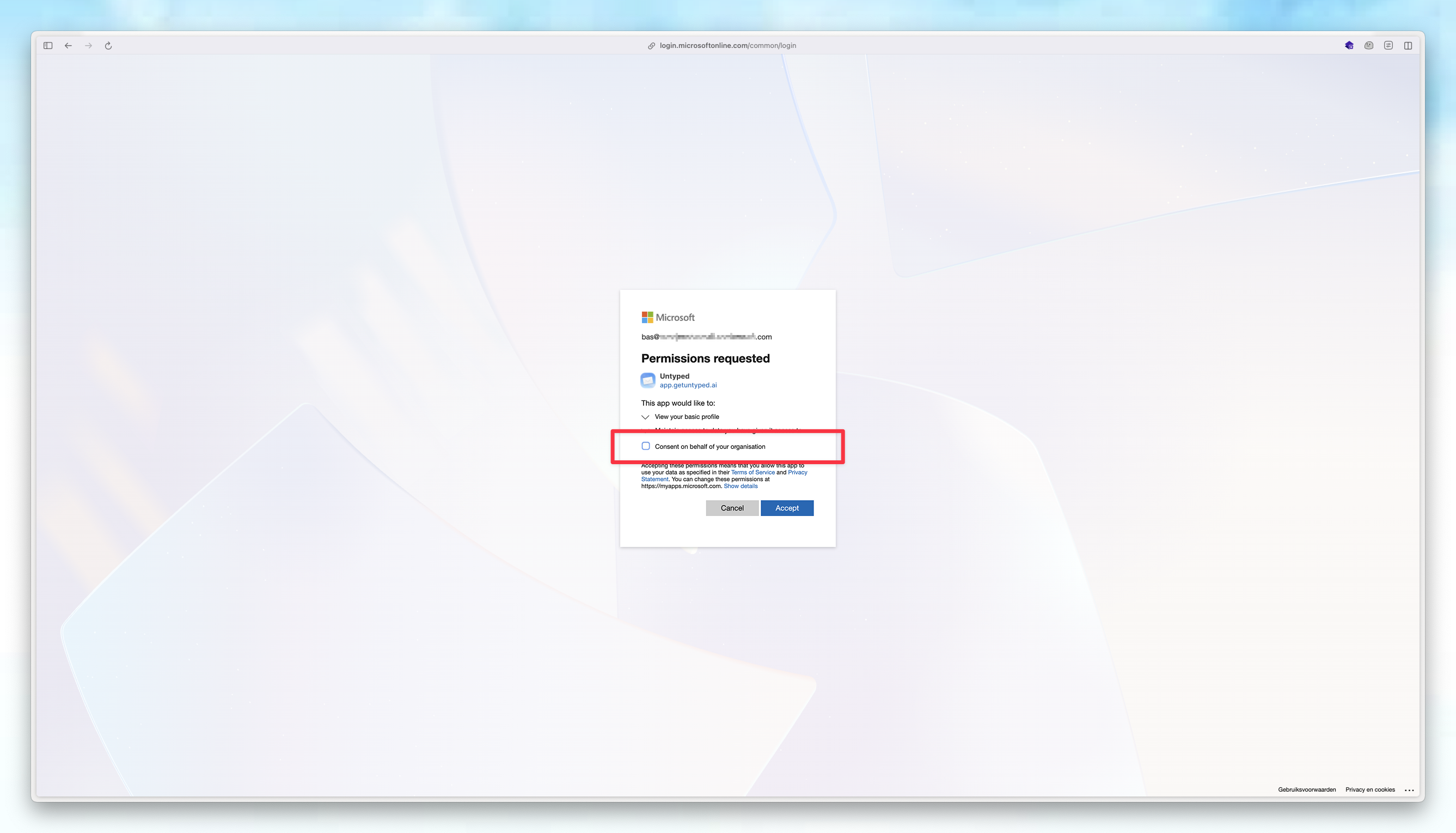 This grants consent for all users in your organization immediately - including anyone who previously saw a "Need admin approval" message. After consent is granted, those users simply need to try connecting again.
If you miss this option during setup, use Method 2 below.
### Method 2: Grant Consent in Microsoft Entra Portal
Use this method to manage permissions centrally or approve Untyped retroactively.
Go to [Microsoft Entra ID → Enterprise apps](https://entra.microsoft.com/#view/Microsoft_AAD_IAM/StartboardApplicationsMenuBlade/~/AppAppsPreview)
This grants consent for all users in your organization immediately - including anyone who previously saw a "Need admin approval" message. After consent is granted, those users simply need to try connecting again.
If you miss this option during setup, use Method 2 below.
### Method 2: Grant Consent in Microsoft Entra Portal
Use this method to manage permissions centrally or approve Untyped retroactively.
Go to [Microsoft Entra ID → Enterprise apps](https://entra.microsoft.com/#view/Microsoft_AAD_IAM/StartboardApplicationsMenuBlade/~/AppAppsPreview)
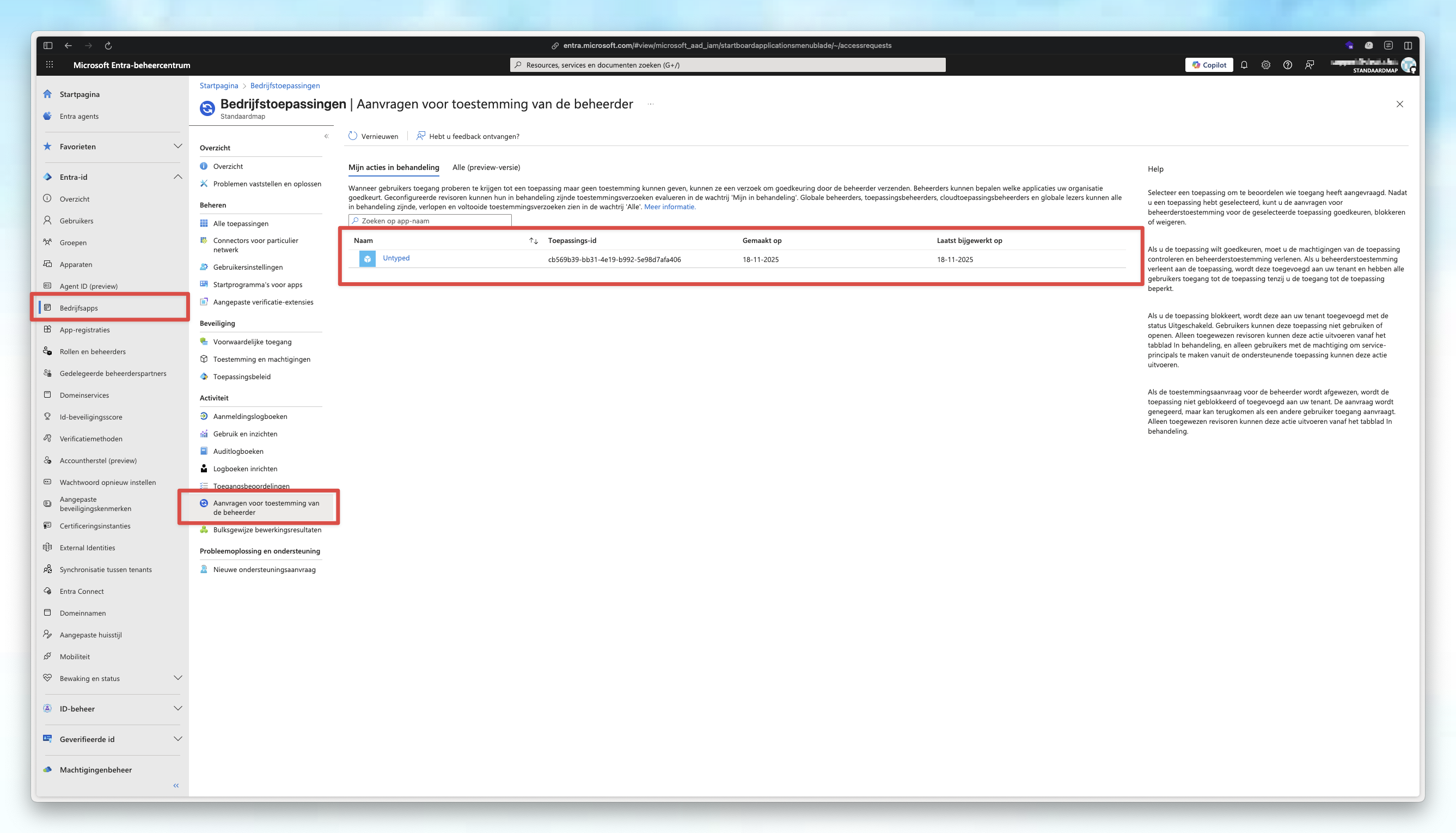 Search for **Untyped** in the enterprise applications list
Make sure to remove any active filters while searching
Go to **Security → Permissions**
Click **Grant Admin consent for Untyped** button to accept permissions
Once approved, all users can connect Untyped without individual admin approval.
***
If you never did this before - You should first allow users to request access if they encounter a "Need admin approval" message.
## Optional Configuration
### Enable Admin Consent Requests
In **Microsoft Entra ID**, go to **Enterprise Apps → Consent and permissions**
Select **Admin Consent Settings**
Set **Users can request admin consent to apps they are unable to consent to** to **Yes** - Under Reviewer Type, select the Users/Groups/Roles that should be able to review such requests
Search for **Untyped** in the enterprise applications list
Make sure to remove any active filters while searching
Go to **Security → Permissions**
Click **Grant Admin consent for Untyped** button to accept permissions
Once approved, all users can connect Untyped without individual admin approval.
***
If you never did this before - You should first allow users to request access if they encounter a "Need admin approval" message.
## Optional Configuration
### Enable Admin Consent Requests
In **Microsoft Entra ID**, go to **Enterprise Apps → Consent and permissions**
Select **Admin Consent Settings**
Set **Users can request admin consent to apps they are unable to consent to** to **Yes** - Under Reviewer Type, select the Users/Groups/Roles that should be able to review such requests
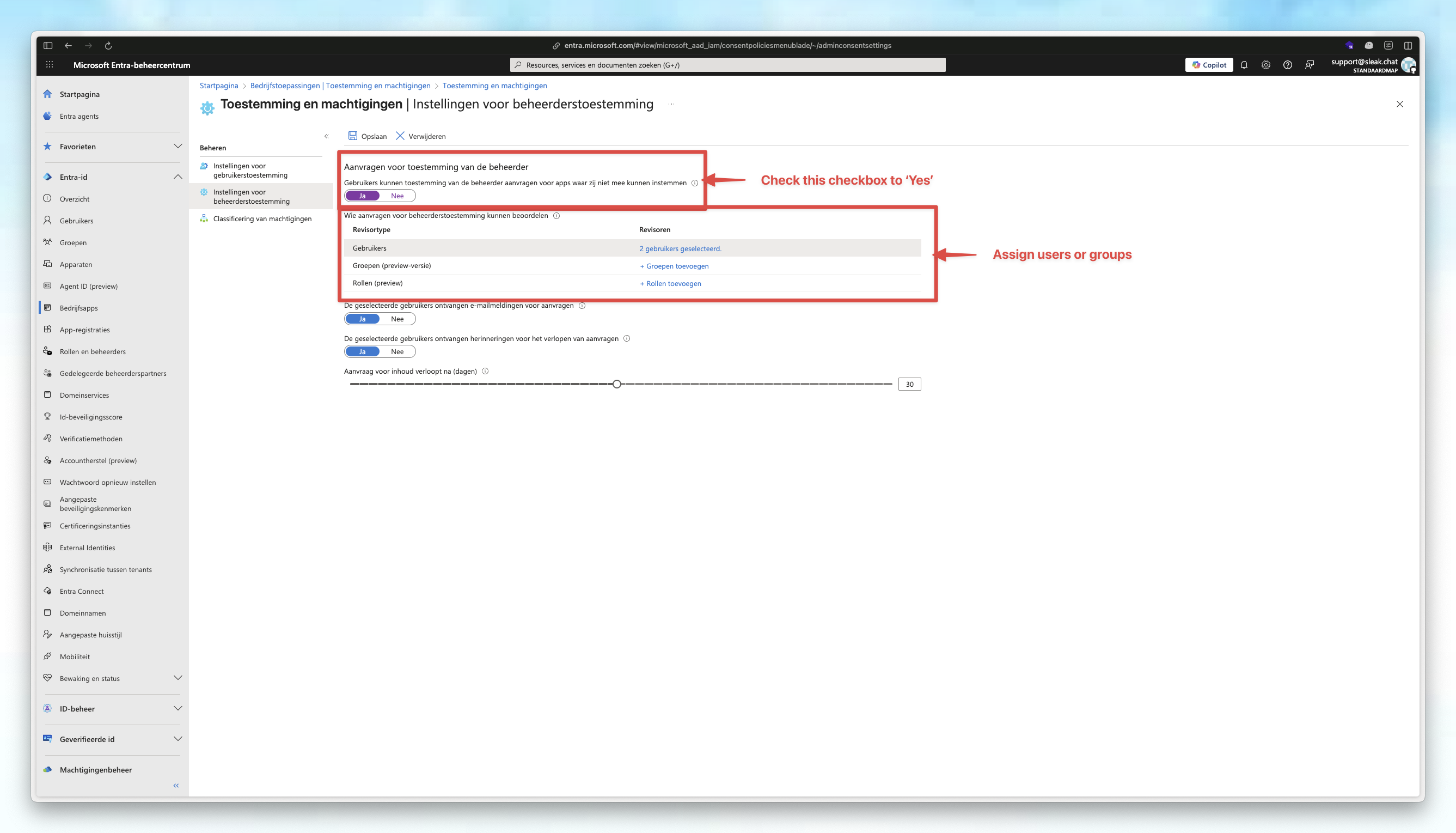 Make sure to **check the top checkbox to 'Yes'**, and then to add groups or users that should be able to request app permissions. Don't forget to save the new configuration after making the changes.
Once enabled, users can request approval directly from the Microsoft sign-in prompt.
#### How to review user requests
1. Go to [**Microsoft Entra ID → Enterprise Applications → Admin Consent Requests**](https://entra.microsoft.com/#view/Microsoft_AAD_IAM/StartboardApplicationsMenuBlade/~/AccessRequests)
2. You'll see a list of all access requests submitted by your users
3. Review and approve/deny requests as needed
### Adjust Assignment Settings
This step is **optional**, but recommended for most organizations.
Turning off "Assignment required?" ensures users can connect to Untyped without you having to manually assign them to the app in Entra. If your organization uses strict app assignment policies, you may prefer to leave this enabled.
**To allow all users to connect without individual assignment:**
In **Enterprise Applications**, select Untyped
Go to **Manage → Properties**
Set **Assignment required?** to **No**
This allows all users in your tenant to connect automatically.
Make sure to **check the top checkbox to 'Yes'**, and then to add groups or users that should be able to request app permissions. Don't forget to save the new configuration after making the changes.
Once enabled, users can request approval directly from the Microsoft sign-in prompt.
#### How to review user requests
1. Go to [**Microsoft Entra ID → Enterprise Applications → Admin Consent Requests**](https://entra.microsoft.com/#view/Microsoft_AAD_IAM/StartboardApplicationsMenuBlade/~/AccessRequests)
2. You'll see a list of all access requests submitted by your users
3. Review and approve/deny requests as needed
### Adjust Assignment Settings
This step is **optional**, but recommended for most organizations.
Turning off "Assignment required?" ensures users can connect to Untyped without you having to manually assign them to the app in Entra. If your organization uses strict app assignment policies, you may prefer to leave this enabled.
**To allow all users to connect without individual assignment:**
In **Enterprise Applications**, select Untyped
Go to **Manage → Properties**
Set **Assignment required?** to **No**
This allows all users in your tenant to connect automatically.