> ## Documentation Index
> Fetch the complete documentation index at: https://docs.getuntyped.ai/llms.txt
> Use this file to discover all available pages before exploring further.
# Outlook settings
> Understanding the required settings for organizing your emails in Outlook
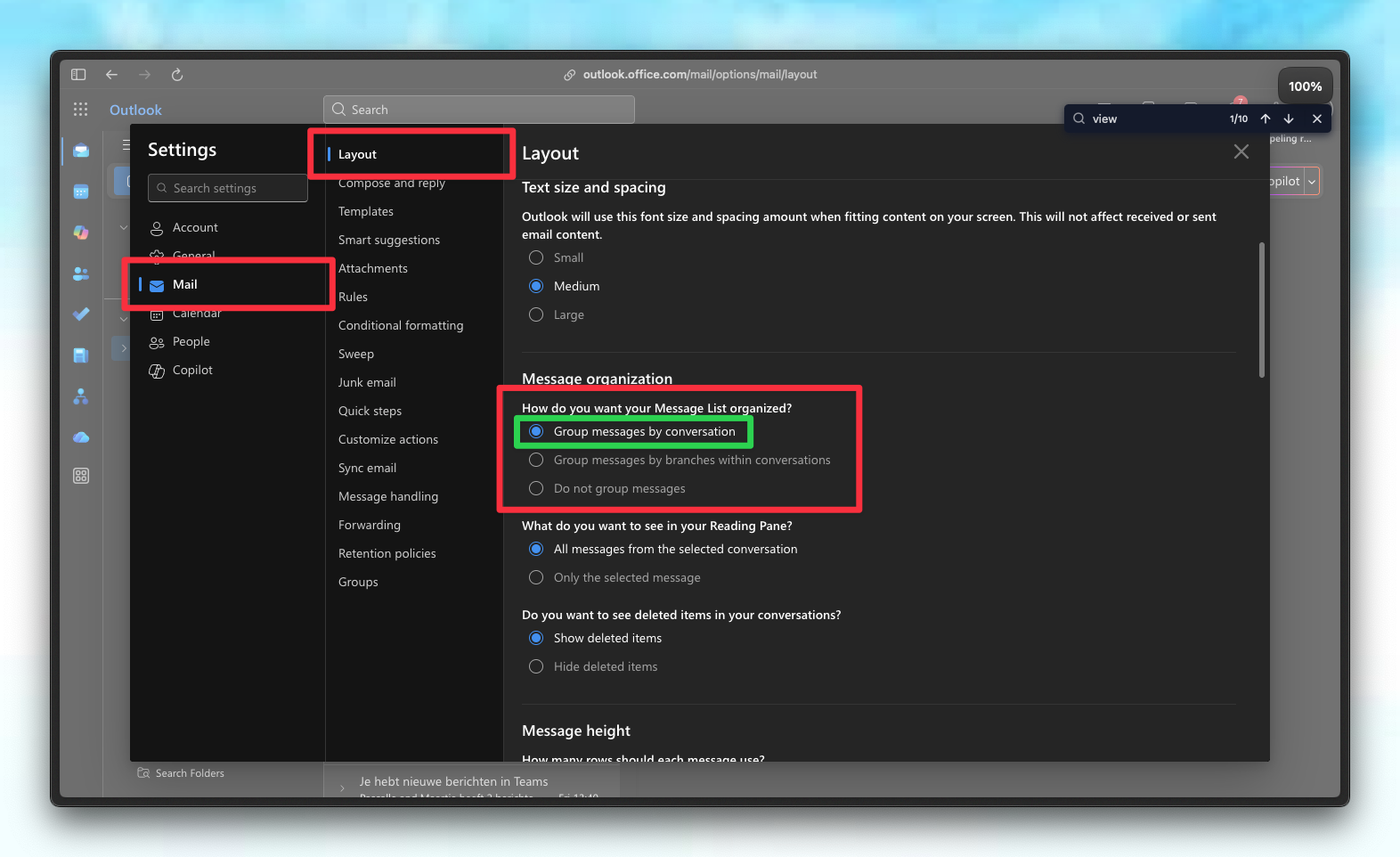
## Enable Conversation View
For the best experience, we strongly recommend enabling **Conversation View** in Outlook.
* **Why?** Without this setting, emails from the same thread may appear separated or "split" across different folders.
* **Benefit:** Conversation View groups related emails together, ensuring Untyped's categorization applies coherently to the entire thread.
 ## Folders vs. Categories
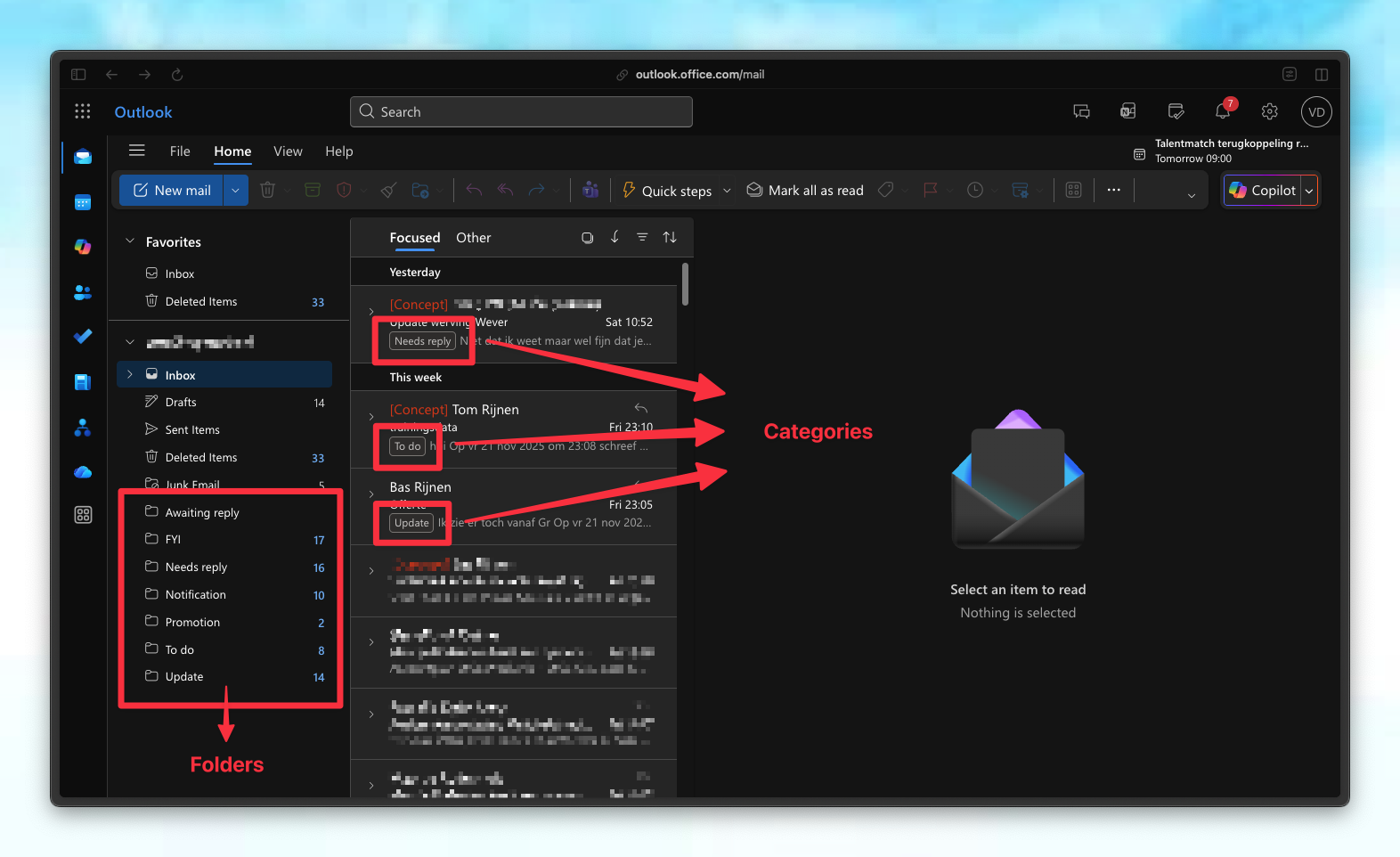
Outlook handles email organization differently than other providers by using two distinct systems: **folders** and **categories**.
It is important to distinguish between these two Outlook concepts:
**Folders**
* Emails are physically relocated to a specific folder.
* An email can only reside in one folder at a time (e.g., "Inbox" OR "To Respond").
* Best for cleaning up your inbox and filing messages away.
**Categories**
* Categories act as color-coded tags applied to emails.
* The email remains in its current location; it is simply labeled.
* Multiple categories can be applied to a single email.
## Folders vs. Categories
Outlook handles email organization differently than other providers by using two distinct systems: **folders** and **categories**.
It is important to distinguish between these two Outlook concepts:
**Folders**
* Emails are physically relocated to a specific folder.
* An email can only reside in one folder at a time (e.g., "Inbox" OR "To Respond").
* Best for cleaning up your inbox and filing messages away.
**Categories**
* Categories act as color-coded tags applied to emails.
* The email remains in its current location; it is simply labeled.
* Multiple categories can be applied to a single email.
 ## How Untyped Organizes Your Inbox
Untyped scans and categorizes emails found in your **Inbox** and **Sent Items**.
* If an existing Outlook rule moves an email before Untyped processes it, the agent will skip it to respect your manual rules.
* Untyped tags every processed email with a category (e.g., "1: To Respond").
Your settings determine the next step:
1. **Move to Folder (Checked):** The email is physically moved from the Inbox to the corresponding category folder.
2. **Apply Category Only (Unchecked):** The email remains in your Inbox but receives a colored category tag.
You can configure this behavior for each category in the **Untyped Dashboard**.
## Handling Sent Emails
Untyped ensures your sent items are tracked correctly while keeping your folders organized:
* **Replies:** When you reply to a thread, Untyped moves the entire conversation thread according to your category settings.
* **Sent Items:** The specific email you sent remains in your "Sent Items" folder.
This approach ensures you can view the full conversation history in both the designated Untyped folder and your Sent Items.
## Configuration
To adjust how Untyped handles folders and categories:
1. Navigate to the **Untyped Dashboard**.
2. Open **Categorization Settings**.
3. Toggle the checkbox for each category:
* **Check** to move emails into folders.
* **Uncheck** to keep emails in the Inbox with category tags only.
4. Save your changes.
## How Untyped Organizes Your Inbox
Untyped scans and categorizes emails found in your **Inbox** and **Sent Items**.
* If an existing Outlook rule moves an email before Untyped processes it, the agent will skip it to respect your manual rules.
* Untyped tags every processed email with a category (e.g., "1: To Respond").
Your settings determine the next step:
1. **Move to Folder (Checked):** The email is physically moved from the Inbox to the corresponding category folder.
2. **Apply Category Only (Unchecked):** The email remains in your Inbox but receives a colored category tag.
You can configure this behavior for each category in the **Untyped Dashboard**.
## Handling Sent Emails
Untyped ensures your sent items are tracked correctly while keeping your folders organized:
* **Replies:** When you reply to a thread, Untyped moves the entire conversation thread according to your category settings.
* **Sent Items:** The specific email you sent remains in your "Sent Items" folder.
This approach ensures you can view the full conversation history in both the designated Untyped folder and your Sent Items.
## Configuration
To adjust how Untyped handles folders and categories:
1. Navigate to the **Untyped Dashboard**.
2. Open **Categorization Settings**.
3. Toggle the checkbox for each category:
* **Check** to move emails into folders.
* **Uncheck** to keep emails in the Inbox with category tags only.
4. Save your changes.