Connect Gmail to Untyped
1
Sign in with Google
Click the “Sign in with Google” button on the Untyped sign-in page at app.getuntyped.ai.
2
Select your account
Choose the Gmail account you want to connect to Untyped.
3
Grant permissions
Untyped will request permission to: - Read your emails and metadata - Access your Gmail labels - Send emails on your behalf (for drafts)
These permissions allow Untyped to learn from your email history and generate personalized drafts. Your data is encrypted and never shared with third parties.
4
Complete setup
Once authorized, you’ll be redirected to your Untyped dashboard where the onboarding process will begin.
Troubleshooting Gmail Connection
Untyped not working? Check permissions
Untyped not working? Check permissions
If Untyped isn’t syncing or drafting emails, the most common issue is missing Google Account permissions.How to fix: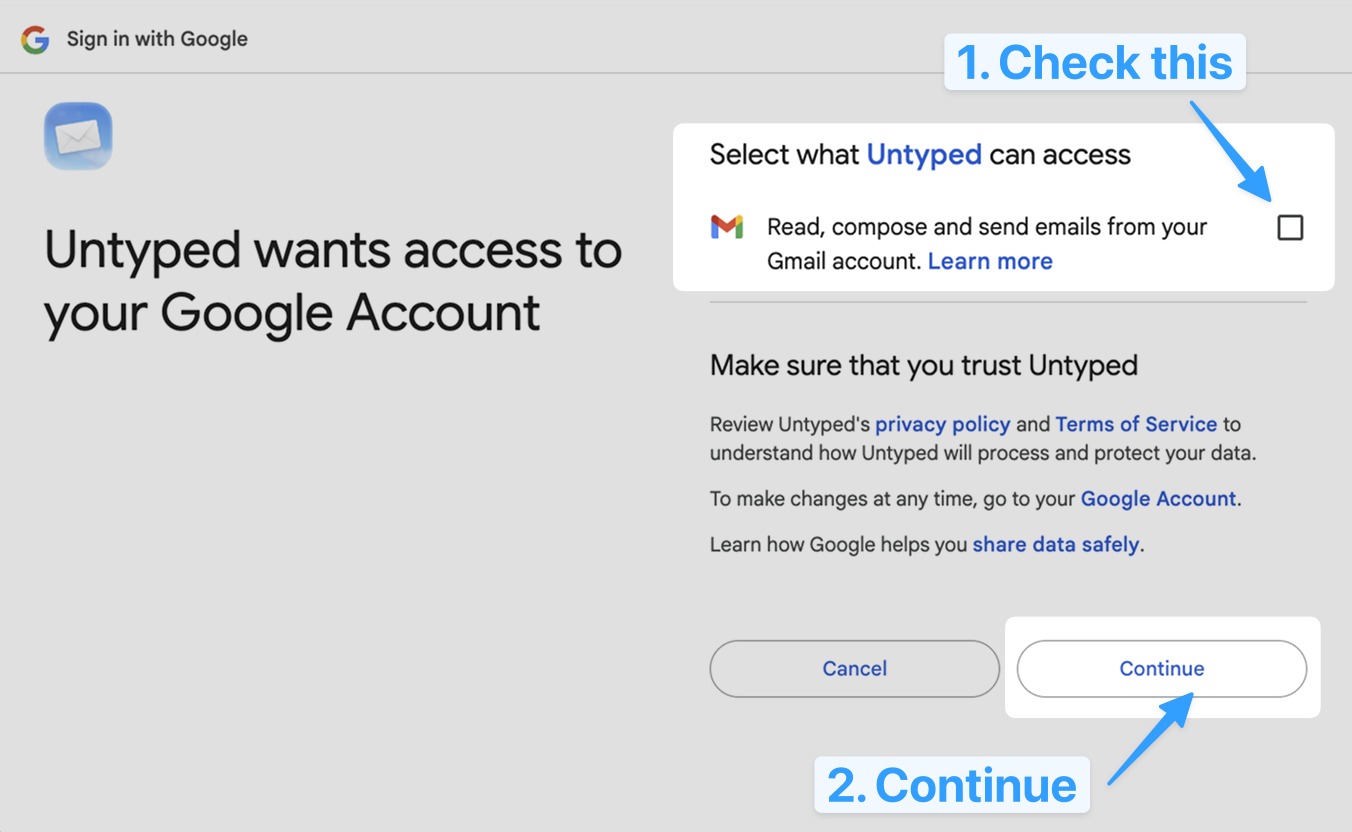
- Go to your Google Account permissions page
- Find “Untyped” in your connected apps
- Make sure the checkbox for “Read, compose and send emails from your Gmail account” is checked
Permission denied error
Permission denied error
If you see a permission error during sign-in, make sure your Google account allows third-party apps. Go to your Google Account settings and verify that security settings permit app access.
Can't see certain emails
Can't see certain emails
Untyped respects Gmail’s native filtering. If you have filters that archive or delete emails automatically, Untyped won’t process those emails.