

Use exclude prompt when the base sensitivity sliders aren’t enough. This gives you fine-grained control to describe specific email types that don’t need replies.
What is Exclude Prompt?
Exclude prompt lets you describe in plain language which emails don’t need replies. Instead of manually skipping drafts, teach the AI your preferences once.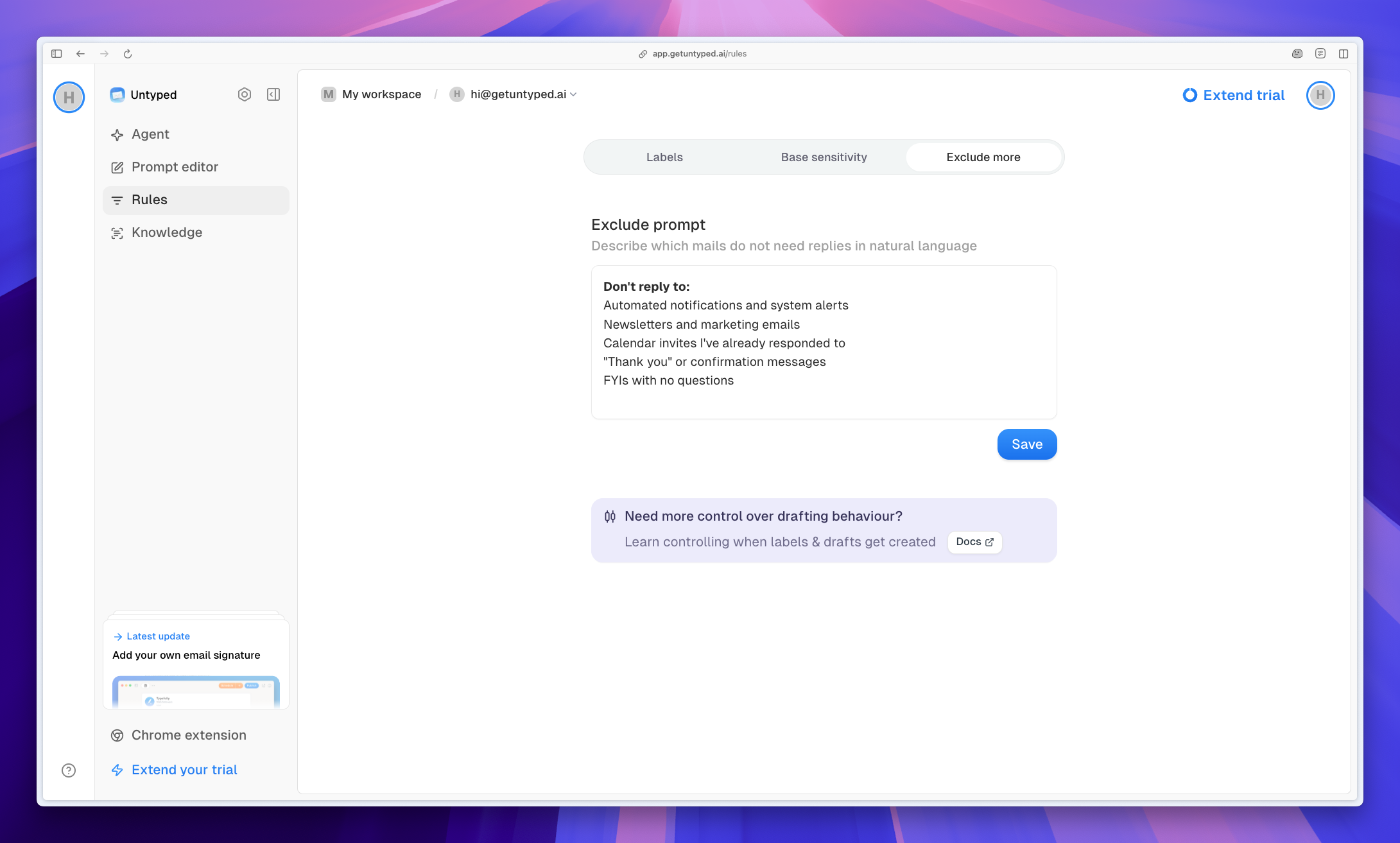
How It Works
Write rules in natural language describing emails that don’t need responses. The AI applies these rules automatically to skip draft creation. Example rules:- Automated notifications and system alerts
- Newsletters and marketing emails
- Calendar invites I’ve already responded to
- “Thank you” or confirmation messages
- FYIs with no questions
Setup
1
Navigate to Rules
Go to Rules → Exclude more tab at app.getuntyped.ai
2
Describe exclusions
Write which emails don’t need replies in the text box
3
Save
Click Save to apply your rules
Combine with Base Sensitivity
Exclude prompt works alongside base sensitivity:- Base sensitivity: Sets overall draft frequency
- Exclude prompt: Defines specific categories to skip
Next Steps
Base Sensitivity
Adjust draft frequency with the slider
Labels
See how emails are categorized