

Overview
Untyped securely integrates with Microsoft 365 to organize inboxes, draft smart replies, and capture meeting notes automatically. To enable Outlook connections for your team, an admin needs to grant Untyped permission in Microsoft Entra ID (formerly Azure AD). This step authorizes a secure, organization-wide connection through Microsoft’s verified OAuth process.Granting Access to Untyped
Admins can approve Untyped using one of two methods:Method 1: Grant Consent During Untyped Login
This is the quickest way to enable access for all users.1
Navigate to Untyped
Go to app.getuntyped.ai and click Continue with Microsoft/Outlook
2
Sign in as admin
Sign in using your Microsoft admin account
3
Grant organization consent
On the Permissions requested screen: - Check: Consent on behalf of your organization - Click Accept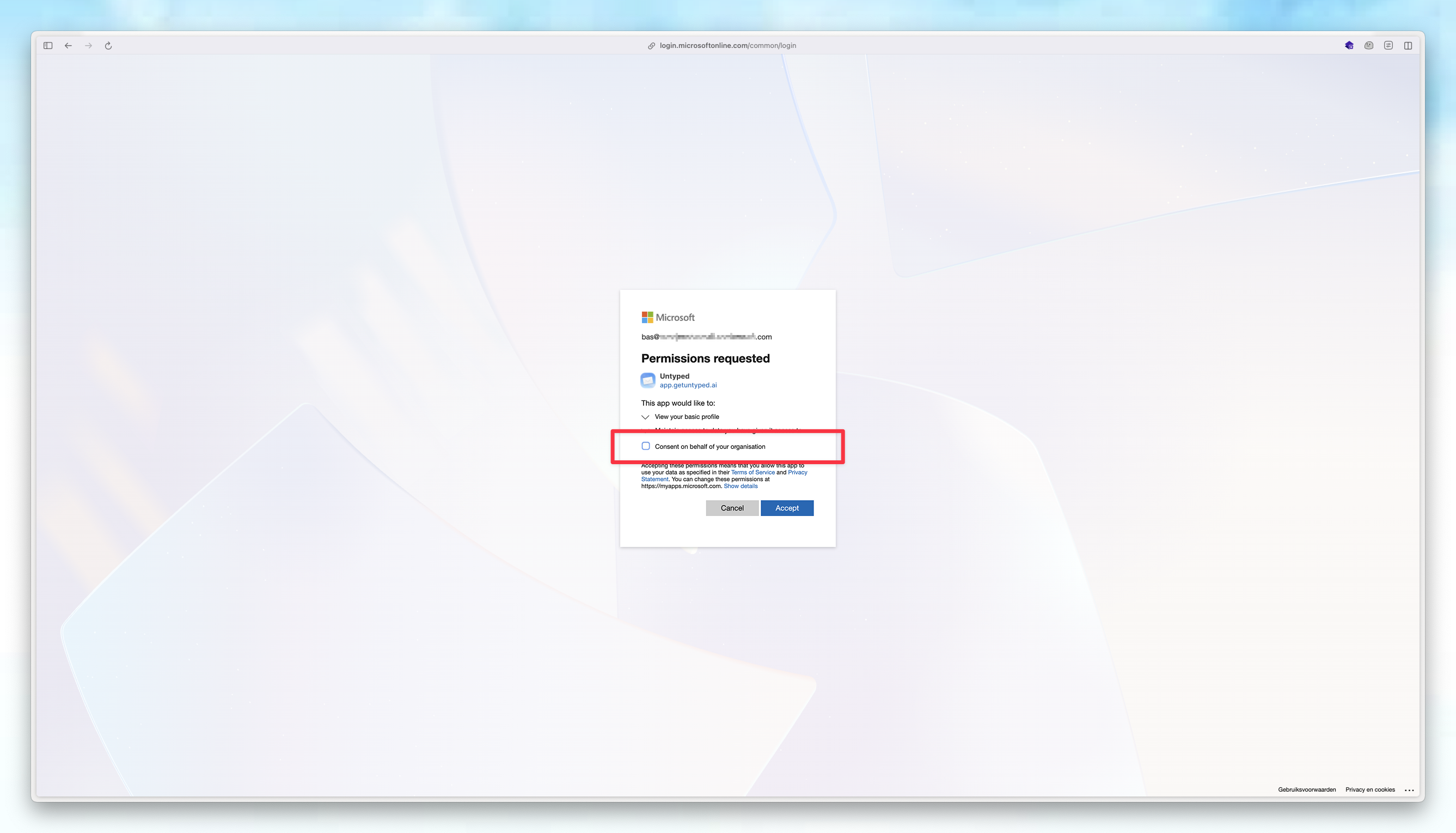
Method 2: Grant Consent in Microsoft Entra Portal
Use this method to manage permissions centrally or approve Untyped retroactively.1
Open Microsoft Entra ID
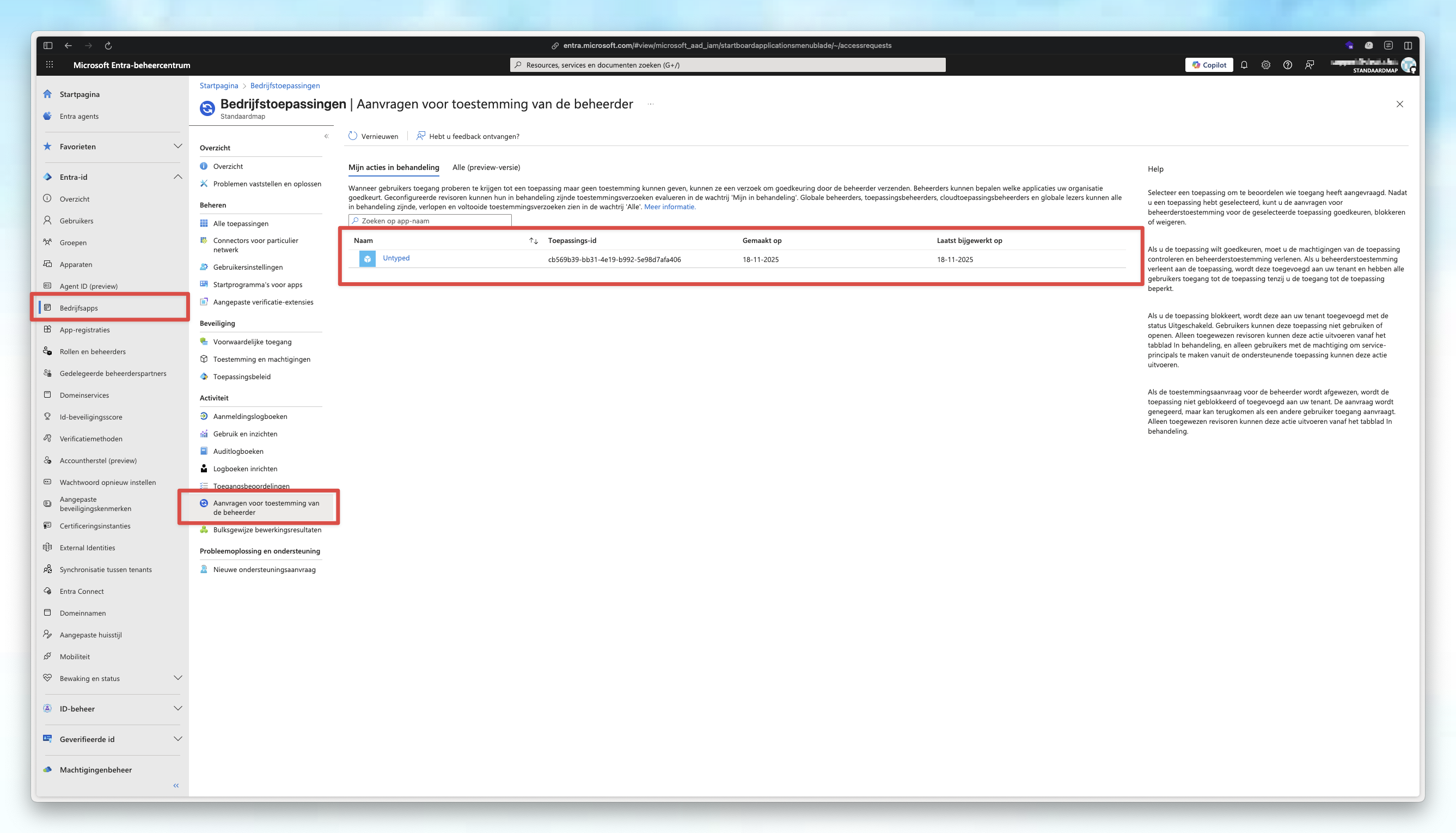
2
Find Untyped
Search for Untyped in the enterprise applications list
3
Navigate to Permissions
Go to Security → Permissions
4
Grant admin consent
Click Grant Admin consent for Untyped button to accept permissions
Optional Configuration
Enable Admin Consent Requests
1
Open Consent Settings
In Microsoft Entra ID, go to Enterprise Apps → Consent and permissions
2
Configure Admin Consent Settings
Select Admin Consent Settings
3
Enable user requests
Set Users can request admin consent to apps they are unable to consent to to Yes - Under Reviewer Type, select the Users/Groups/Roles that should be able to review such requests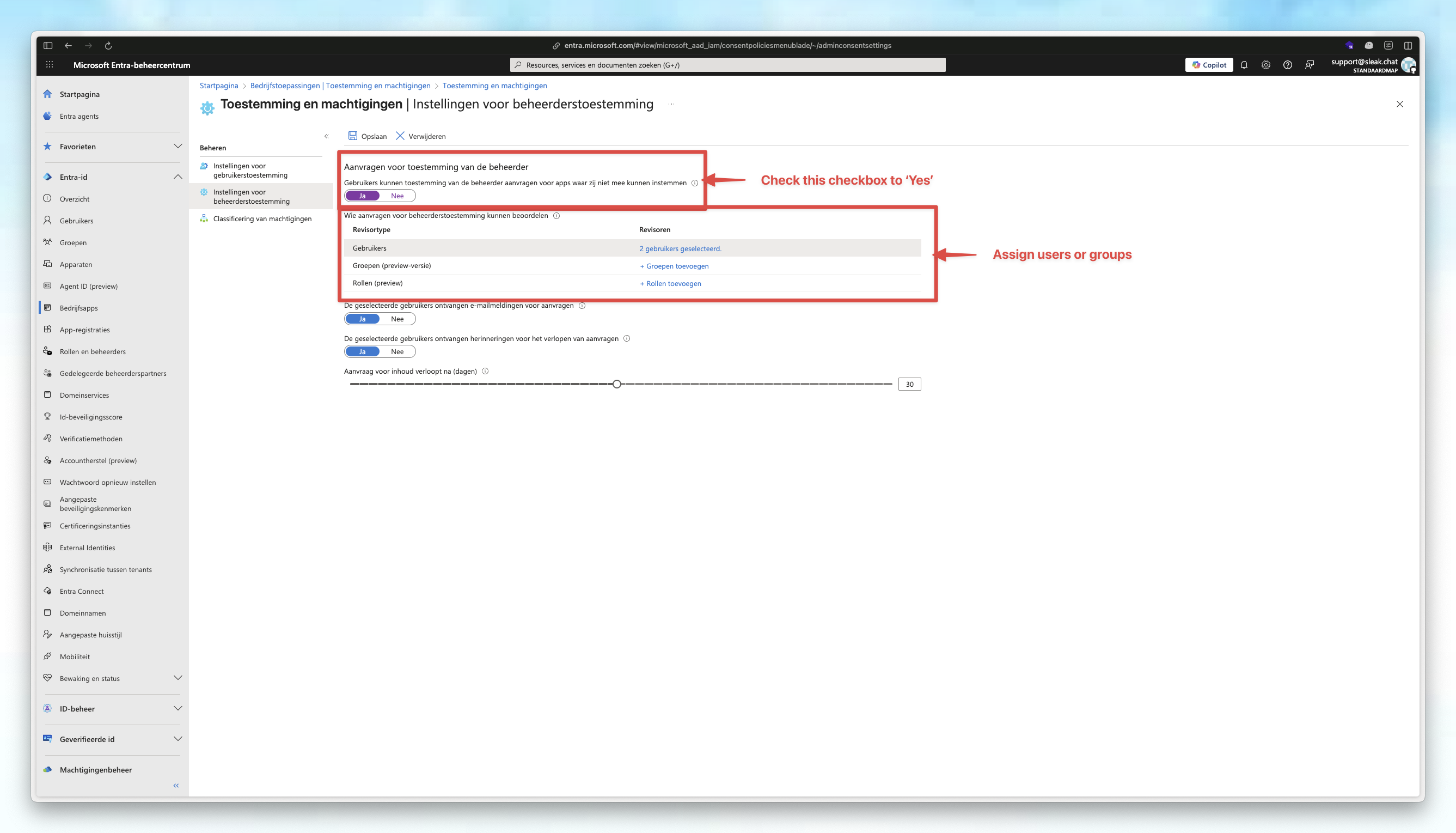
How to review user requests
- Go to Microsoft Entra ID → Enterprise Applications → Admin Consent Requests
- You’ll see a list of all access requests submitted by your users
- Review and approve/deny requests as needed
Adjust Assignment Settings
This step is optional, but recommended for most organizations.
1
Select Untyped in Enterprise Applications
In Enterprise Applications, select Untyped
2
Open Properties
Go to Manage → Properties
3
Disable assignment requirement
Set Assignment required? to No